
Pulling Your QBO Reports
A step-by-step guide to pulling reports in QuickBooks Online so you can compare them to your Ressio budget.
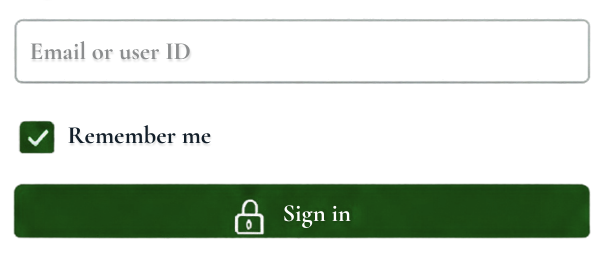
Step 1: Log into QuickBooks Online
Sign in at qbo.intuit.com with your usual email and password.

Step 2: Go to Reports
In the left-hand menu, click Reports, then select Standard reports.
Type the report name in the search bar. Which one you need depends on how you track jobs:
• Jobs as Projects → Project Profitability Summary
• Jobs as Classes → Profit and Loss by Class
• Jobs as Customers → Profit and Loss by Customer
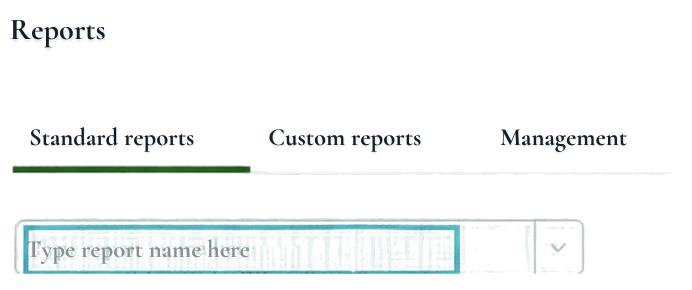
Step 3: Search for your report
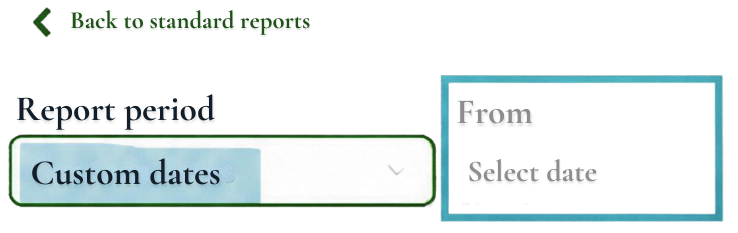
Step 4: Set a custom date range
Change the report period to Custom dates.
• Start: the first date of activity on the project you're reviewing
• End: today or later
Not sure of the start date? Pick a date you know is earlier than the project started.
• In the Project Profitability Summary, projects are listed as rows.
• In the Class and Customer reports, they're listed as columns.
Step 5: Find your project
Step 6: Note your numbers
Write down these three numbers, then compare them to your Ressio budget:
• Total Income
• Total Expenses
• Uncategorized expenses